Blynk
Direction: MO
Blynk is a low-code IoT platform: full-service infrastructure to connect devices, design intuitive apps, and manage global fleets, without backend headaches.
Cloudloop Configuration
- Upload Mode
- Token - Blynk device token, required for CSV and RTU upload modes
- Converter URL - Blynk data converter URL, required for Data Converter upload mode
Blynk Configuration
A free Blynk account can be used with the CSV and RTU upload modes but access to Data Converters requires a subscription.
Data Converter
Device Template
First create a Device Template which will hold the standard configuration for your Things in Blynk.
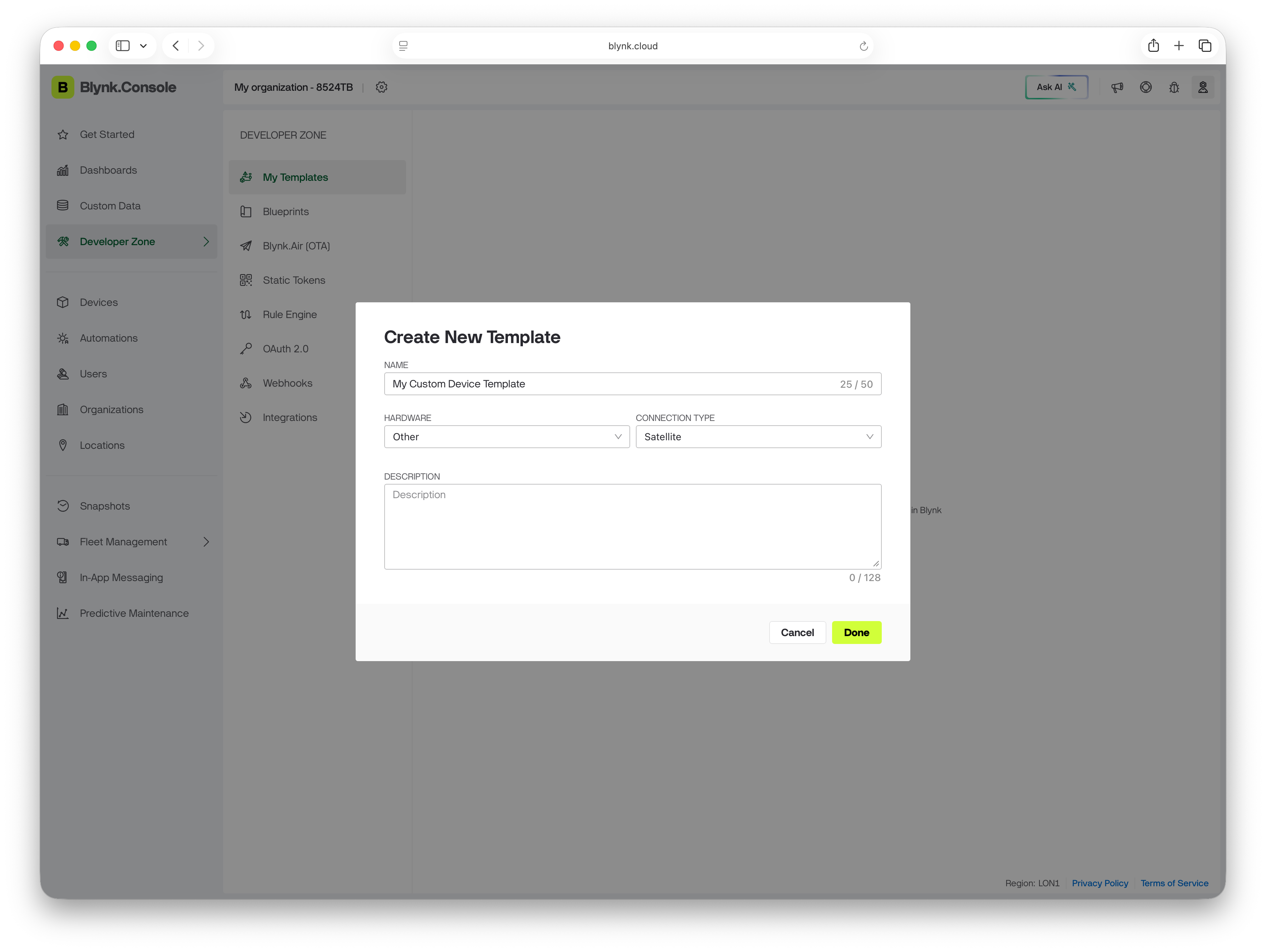
You can create multiple device templates if you're managing different types of Things within Cloudloop-Data. Make sure you separate the Things into different Groups if you're doing this as each template in Blynk will need its own destination in Data.
Datastreams
Next, create DataStreams to hold all the data you want to pull out of the LingoMo messages. These should be 'Virtual' pins as we will be populating them using code in the data converter.
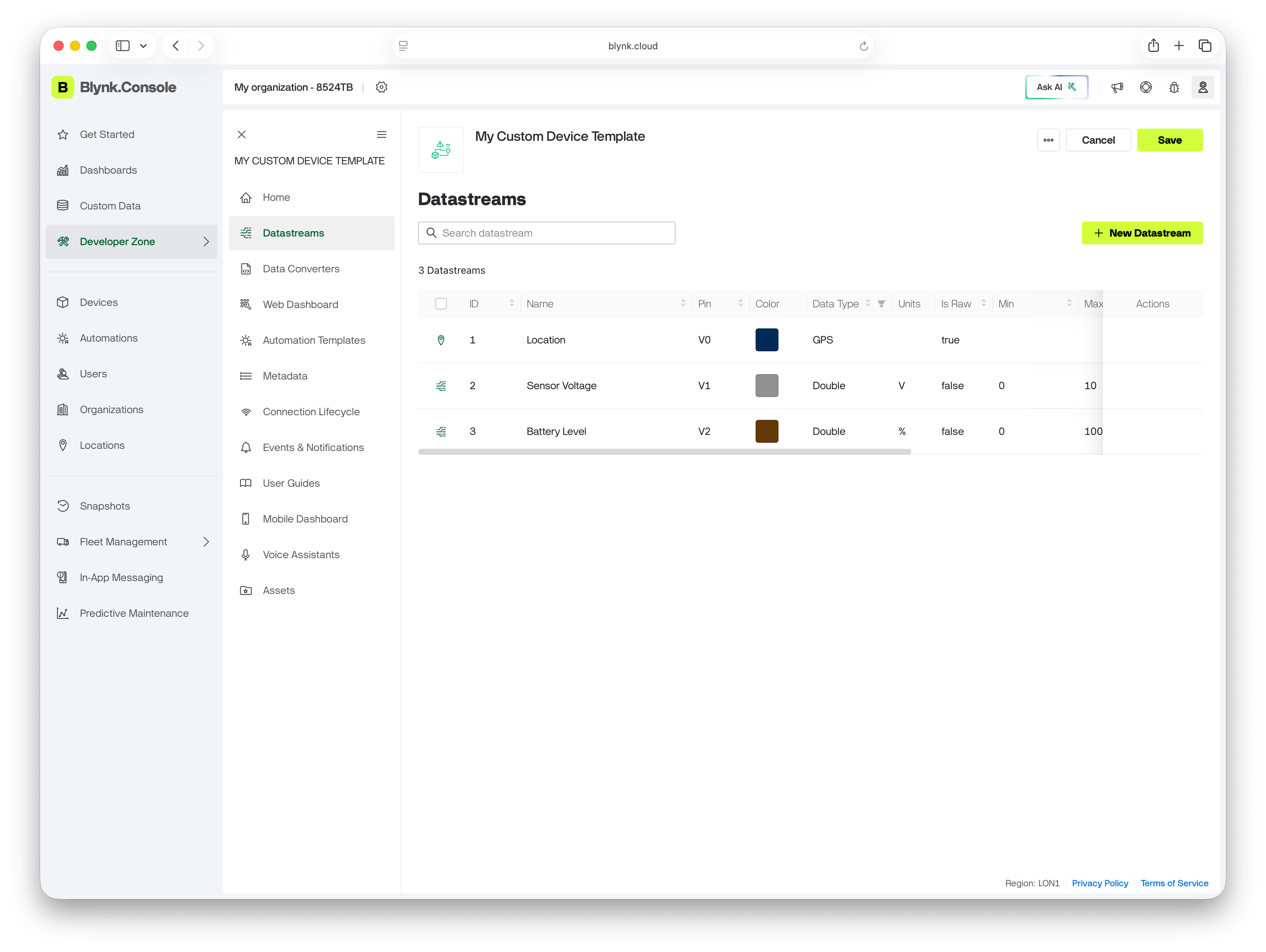
This example has 3 Datastreams, storing location, a voltage reading and battery percentage. Remember to press save otherwise changes will be lost.
Metadata
We need to add a Metadata field to allow us to identify which device each LingoMo is from.
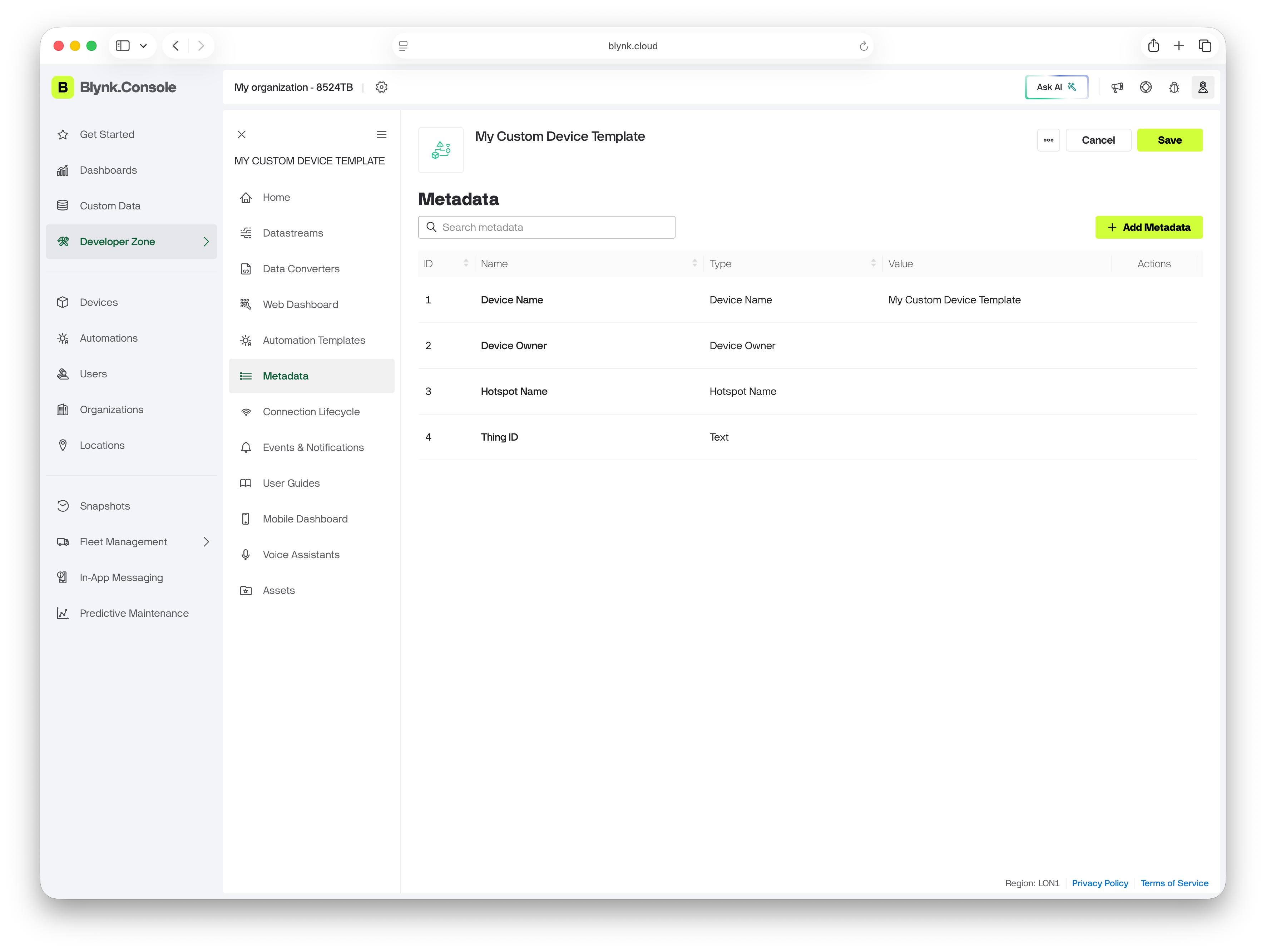
In this example I'm using Thing ID as the identifier due to it being a common field on all Cloudloop-Data Things but other fields such as IMEI or ICCID could be used if you know they will be in the LingoMo.
First Device
Now that we have a metadata field for identifying our devices and DataStreams to hold our data, we can add our first Device to test our Data Converter against.
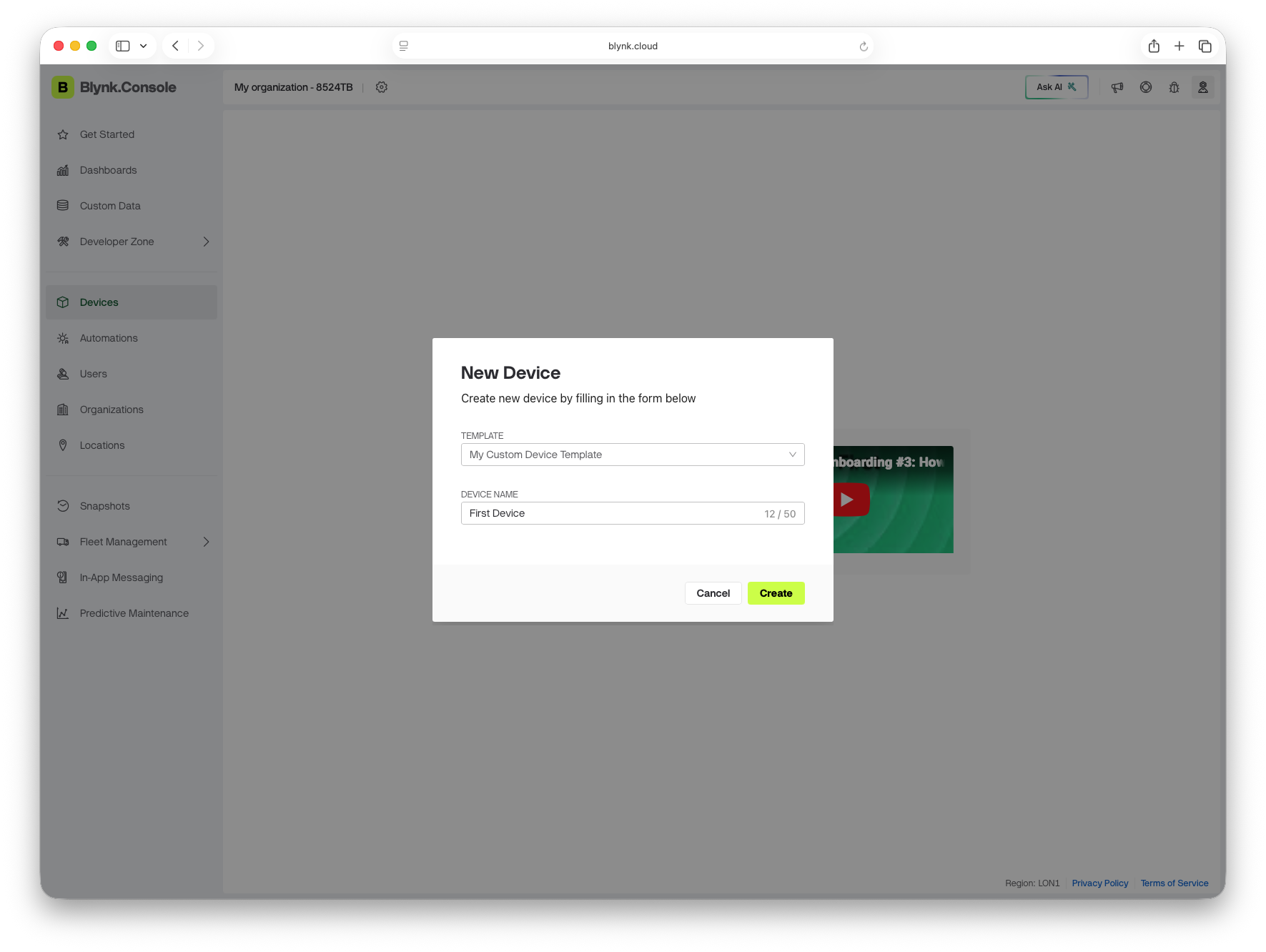
Add a new device from template, select the template we created previously, the device's page should open automatically.
Populate the metadata field you want to use for authentication, in this example it is ThingId.
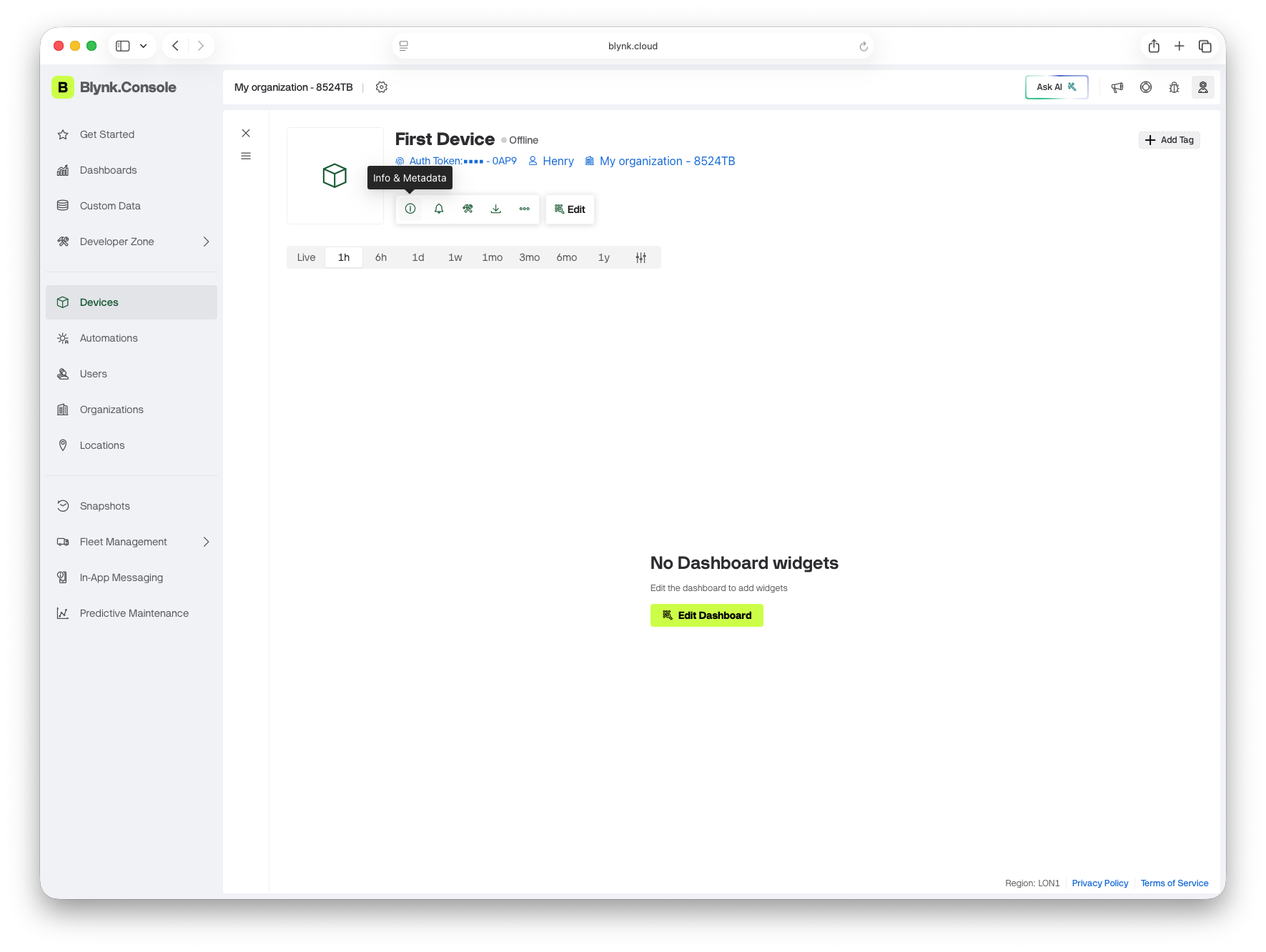
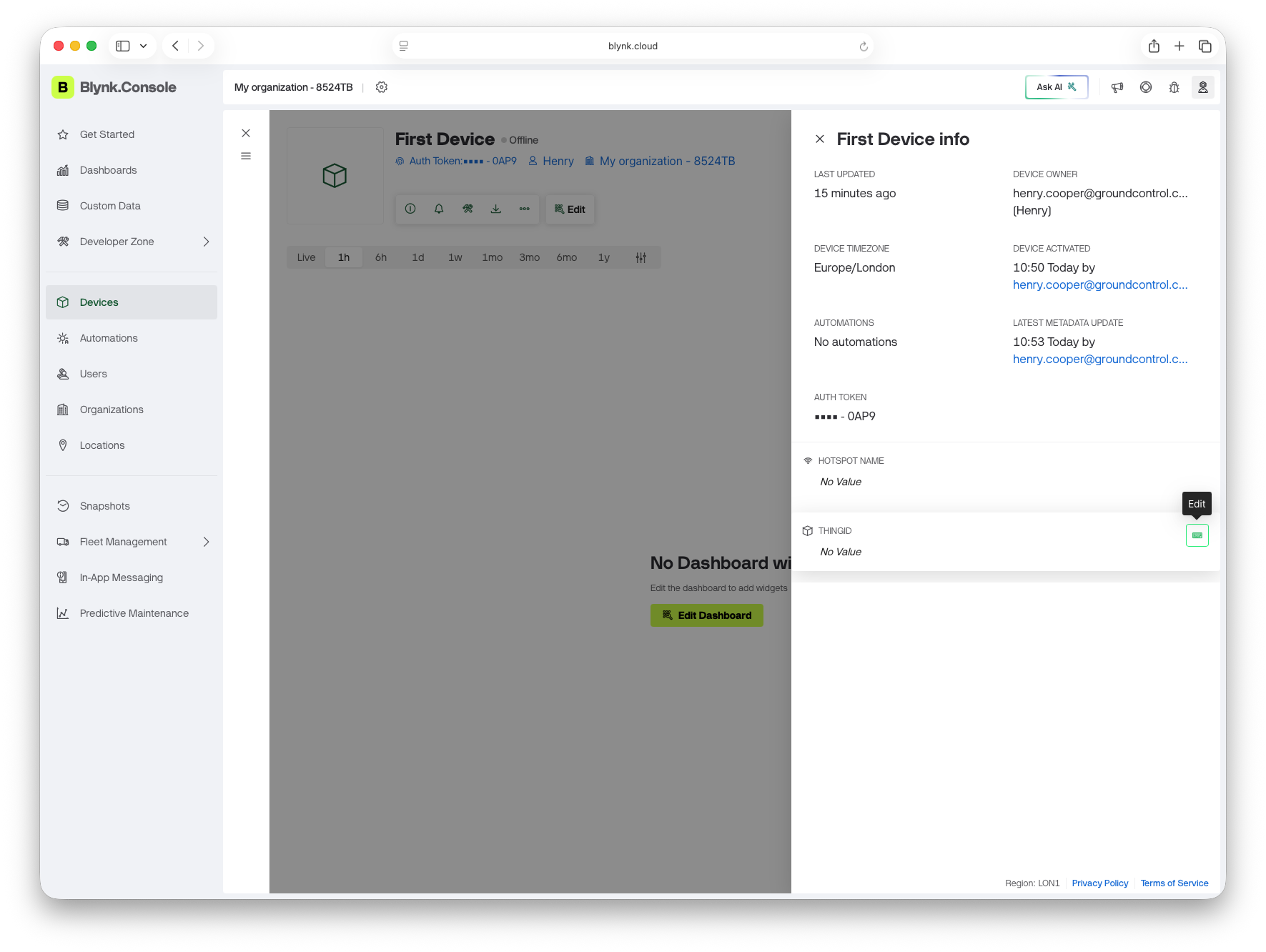
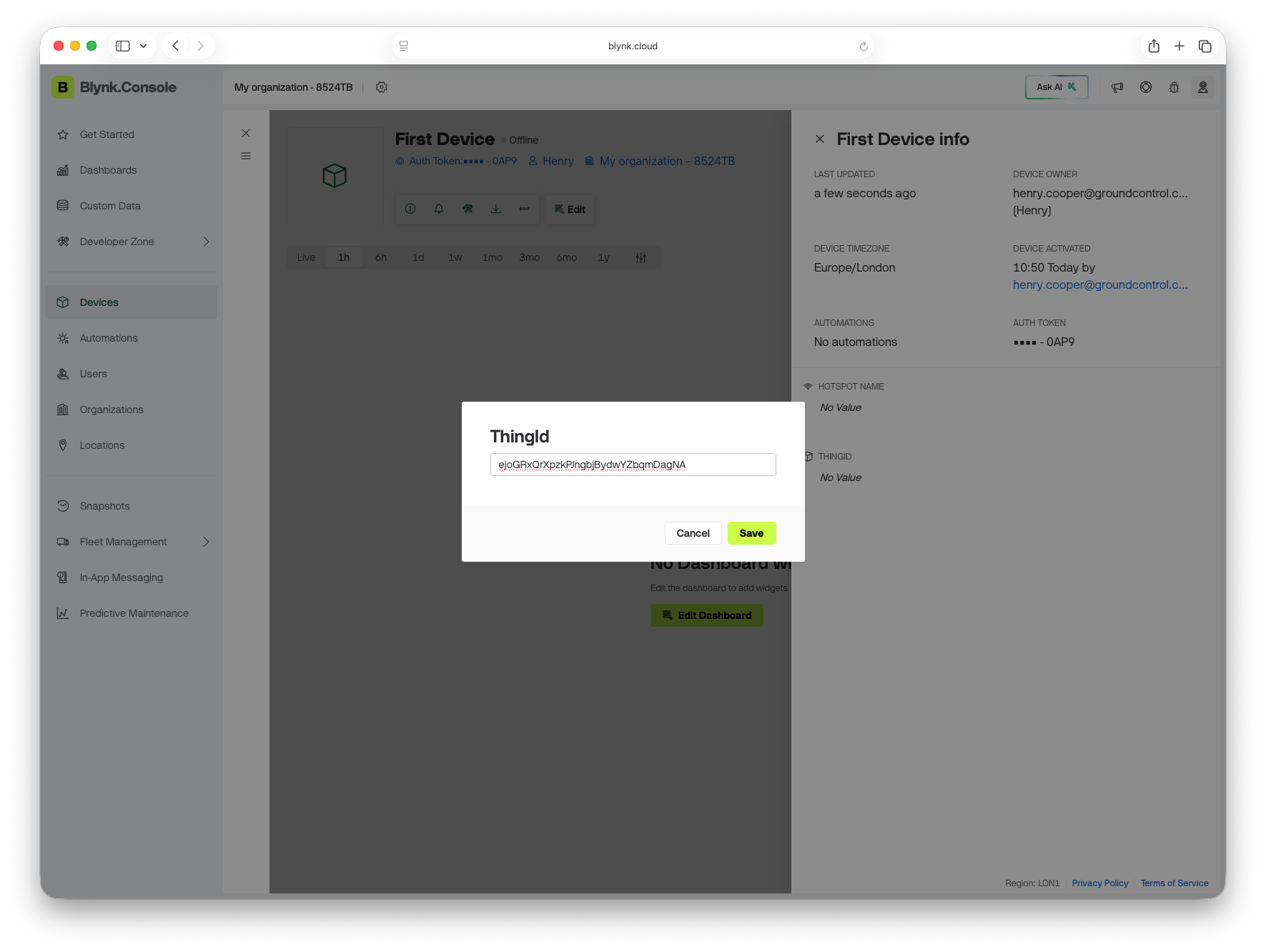
Make sure the metadata field has populated properly, then we are ready to create the Data Converter.
Create Data Converter
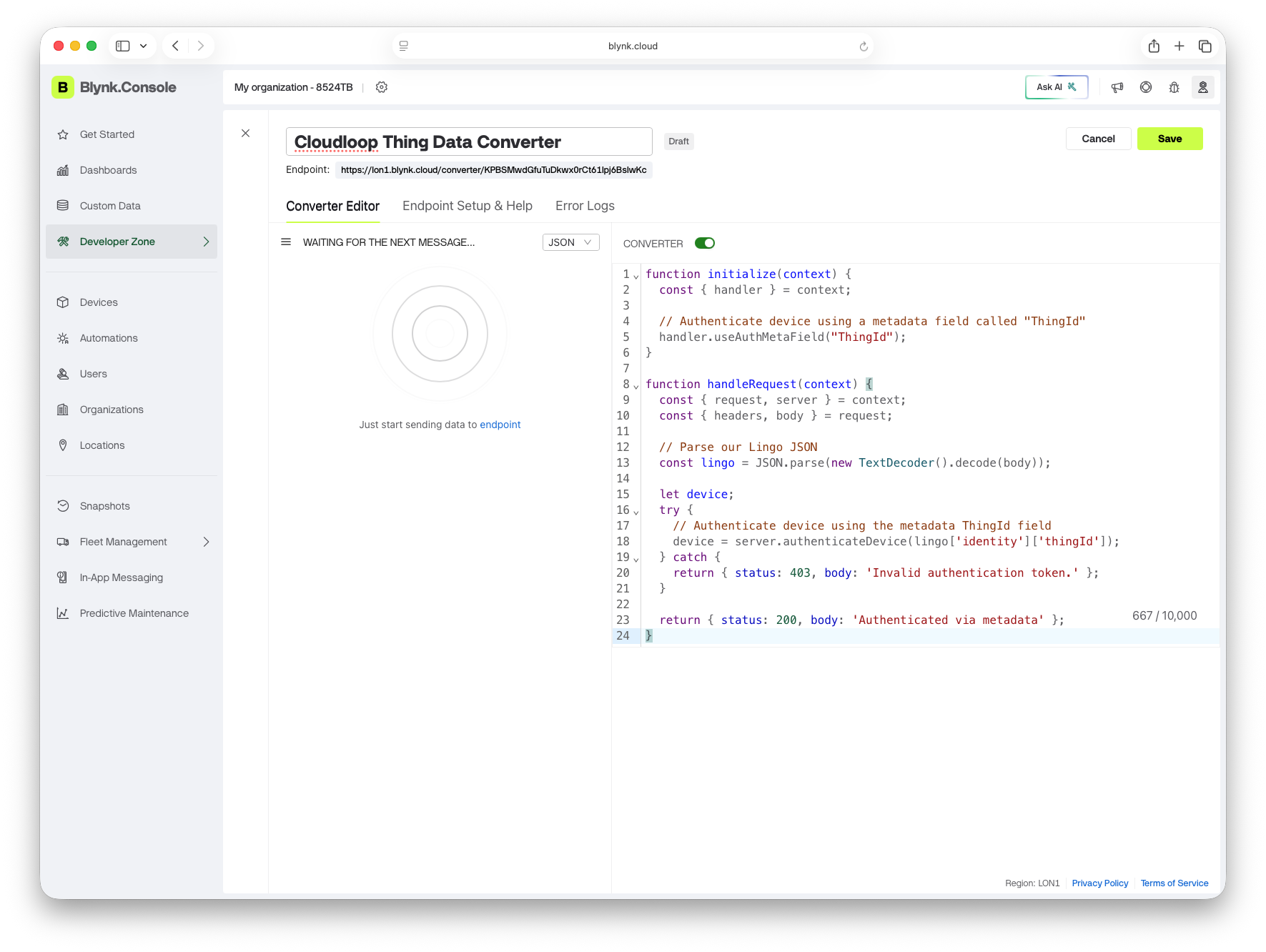
Create a new HTTP Data Converter and choose the 'skip to code' option to get straight to the editing window.
This initial example provides basic device authentication using our ThingId field.
function initialize(context) {
    const {handler} = context;

    // Authenticate device using a metadata field called "ThingId"
    handler.useAuthMetaField("ThingId");
}

function handleRequest(context) {
    const {request, server} = context;
    const {headers, body} = request;

    // Parse our Lingo JSON
    const lingo = JSON.parse(new TextDecoder().decode(body));

    let device;
    try {
        // Authenticate device using the metadata ThingId field
        device = server.authenticateDevice(lingo['identity']['thingId']);
    } catch {
        return {status: 403, body: 'Invalid authentication token.'};
    }

    return {status: 200, body: 'Authenticated via metadata'};
}
The Blynk Data Converter documentation provides more information on possible authentication methods.
At this stage you can create the Blynk Destination in Cloudloop-Data and populate the Converter URL field with your Data Converter URL. This will allow you to send a test message from your device and validate that it authenticates correctly.
Once we have our device authenticated, we can populate our DataStreams using values in the Lingo.
// Iterating through P6 messages
let p6Messages = lingo['p6']['messages']
for (let i = 0; i < p6Messages.length; i++) {

    let message = p6Messages[i]['mo']

    if (message['type'] === "MO_MESSAGE_MANUAL_POSITION_REPORT") {

        let {latitude, longitude} = message['position']['standard']['latlng']

        // Setting Location DataStream value
        device.setDataStreamValue('Location', {lat: latitude, lon: longitude});

    }

    if (message['type'] === "MO_MESSAGE_RTU") {

        let value = message['rtu']['groupValueTransmission']['datum'][0]['value']

        // Setting Sensor Voltage DataStream value
        device.setDataStreamValue('Sensor Voltage', value)

    }

}
This is a very basic example that iterates through P6 messages and extracts certain values, you will need to customize yours to meet your specific use case.
CSV
The CSV upload mode is suitable only in situations where you have a very small number of devices reporting to Blynk. This is due to each device requiring its own Blynk Destination in Cloudloop-Data (and be kept in a separate group).
This upload mode also requires a device that is configured to send raw payloads, it does not support our message protocols (pebble, p6, etc.).
Device Template
First create a Device Template which will hold the standard configuration for your Things in Blynk.
It is recommended to create multiple templates if you are using multiple Things sending different types of data. Make sure you separate the Things into different Groups.
Datastreams
Next, create DataStreams to hold all the data you are sending within your CSV payload, each DataStream will represent a column within the CSV. These should be 'Virtual' pins.
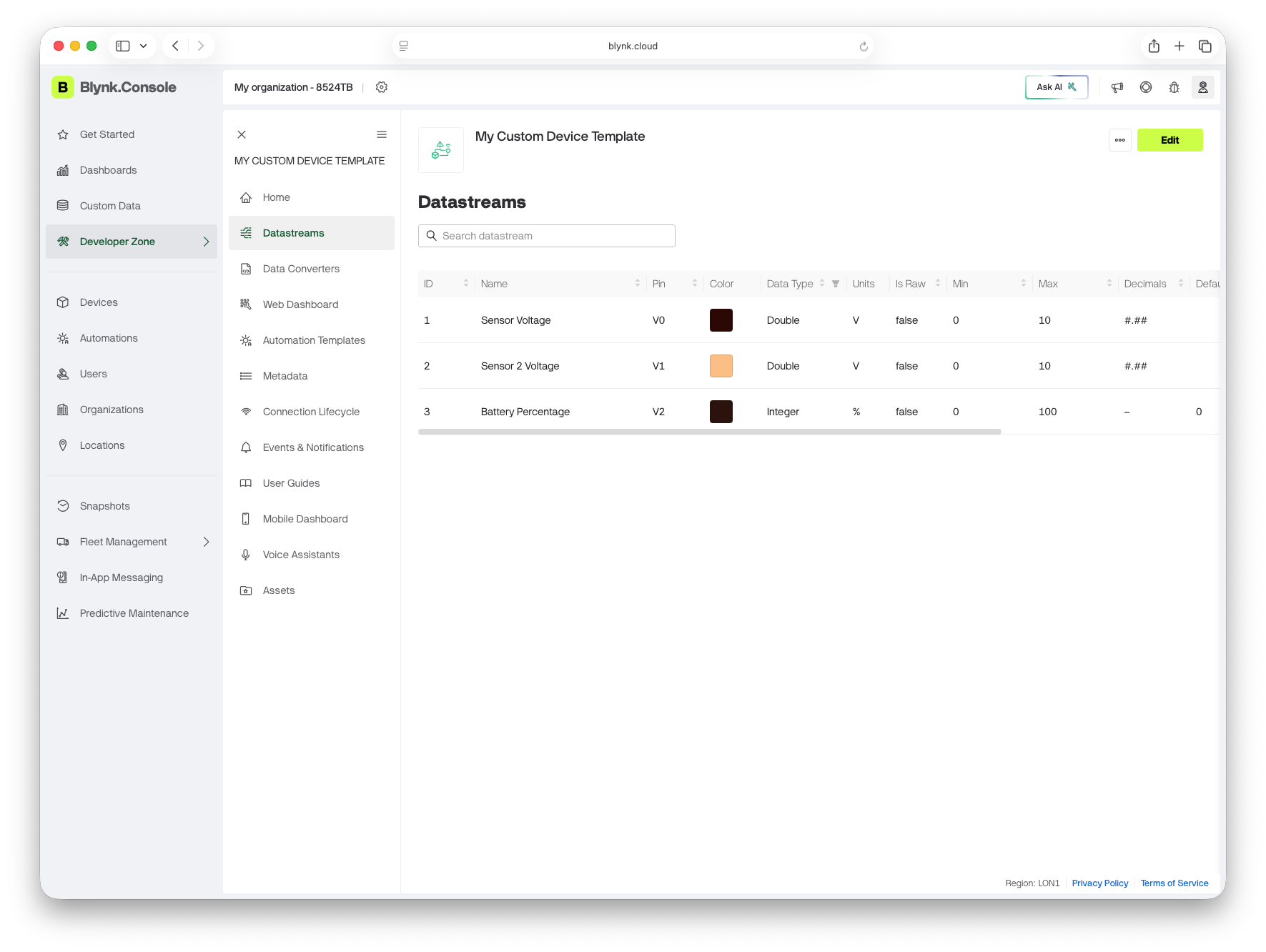
In this example I've created 3 DataStreams, 2 for sensor voltages and 1 for battery percentage. The CSV payload will require 4 columns in this instance, the first is for timestamps, the remaining correspond to the DataStreams.
Create Device
Now that we have our Template completed, we can create our Device.
Add a new device from template, select the template we created previously, the device's page should open automatically.
Create a new Blynk Cloudloop-Data destination and copy the device's authentication token into the configuration, set upload type to CSV. Add the destination to a Thing Group containing the Thing you are sending from.
Sending Messages
To populate the Blynk DataStreams your must send a raw payload from your Thing containing a UTF-8 encoded CSV with the following format.
<Unix Epoch milliseconds timestamp>,<Pin V0 value>,<Pin V1 value>,<Pin V2 value>...
An empty column will not update the respective DataStream's value.
RTU
The RTU upload mode is very similar to the CSV mode but is only available for RockBLOCK RTU users.
Follow the CSV mode guide but make sure your DataStream virtual pins match your RTU physical pins that you want to report data from.
RTU datum transmissions will automatically populate matching Blynk DataStreams.